
How-to · Android
How to Restore Your Notes from a Backup
Open an encrypted Anytime Notes backup, review its contents, and restore copies without overwriting the notes already on your phone.
Restore a notebook after changing phones, or recover saved copies from a backup. The app checks the file and shows a preview before you choose to import anything.
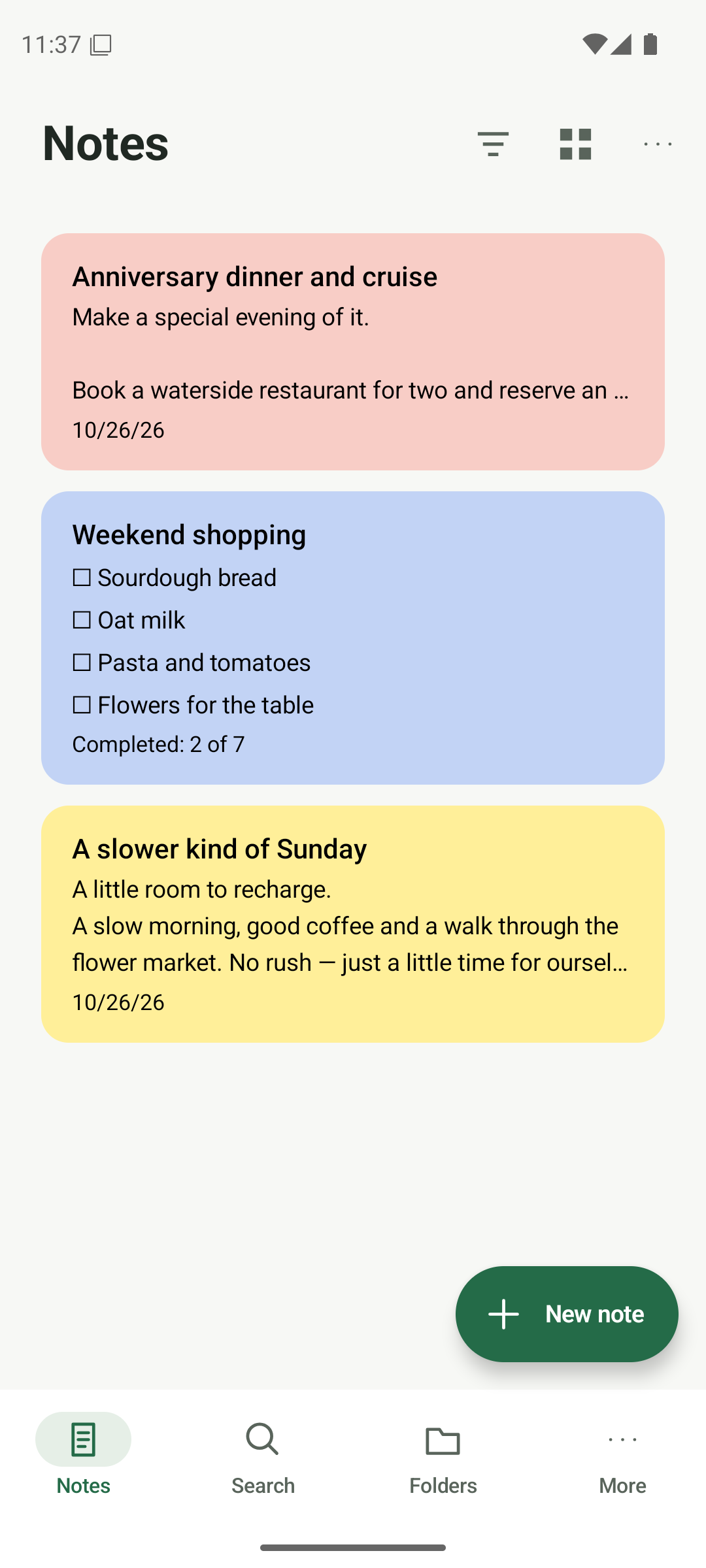
Open Restore and choose your file
Finish saving any open note. Open More → Restore a backup. On the Restore tab, tap Choose backup file and select your saved .anbackup file from Android’s file picker.
- Keep your existing app and notes; you do not need to clear storage.
- Choose More → Restore a backup, then Choose backup file.
- Select a full .anbackup file, rather than an encrypted sharing .ans file or a readable export.
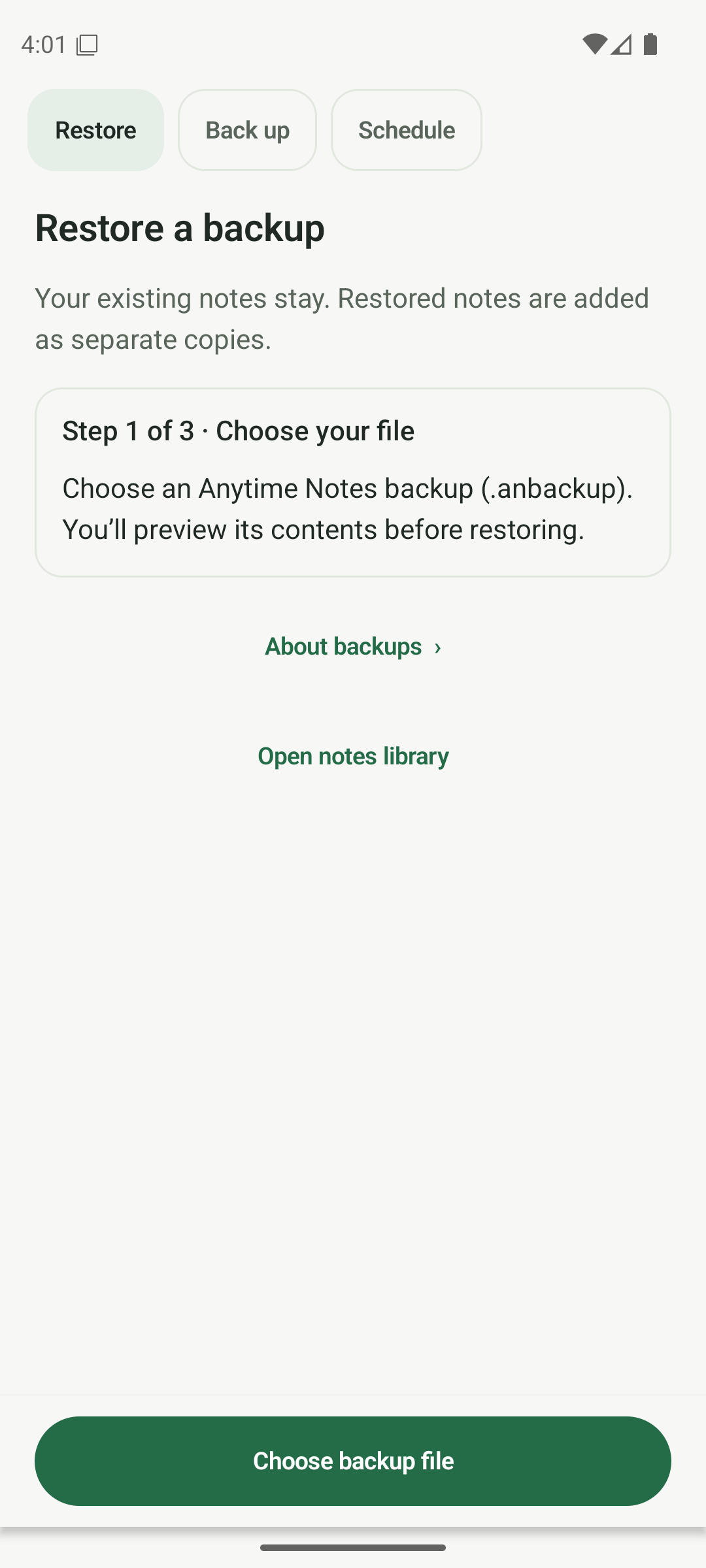
Start on Restore and choose your .anbackup file. Enter the backup’s recovery password
Use the recovery password that belonged to this backup when it was created. Enter it in Backup recovery password, then tap Preview backup. A later password change does not change an older backup’s password.
- Enter the password used when this backup was made.
- Tap Preview backup and wait for the app to check the file.
- If the password is not accepted, check the original password and file; support cannot reset it.
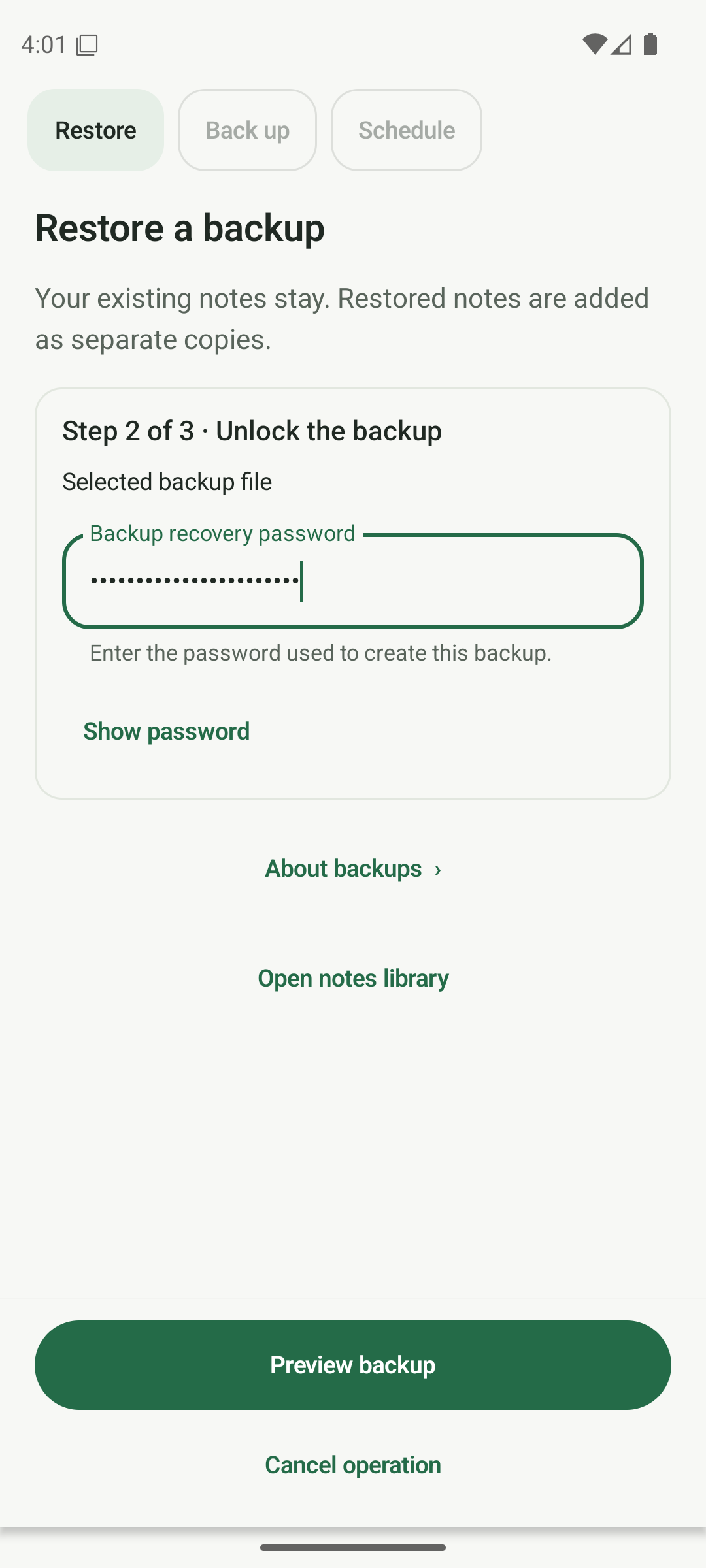
Enter the backup recovery password, then choose Preview backup. Review the backup preview
Check the note and photo counts and read any notices about templates, history or excluded items. Your existing notes are retained. Previewing a backup does not restore it.
- Read the preview counts and any limits or exclusions before continuing.
- Decide whether to apply the backed-up appearance settings; paid themes still require Premium.
- Stop here if you only want to inspect the backup.
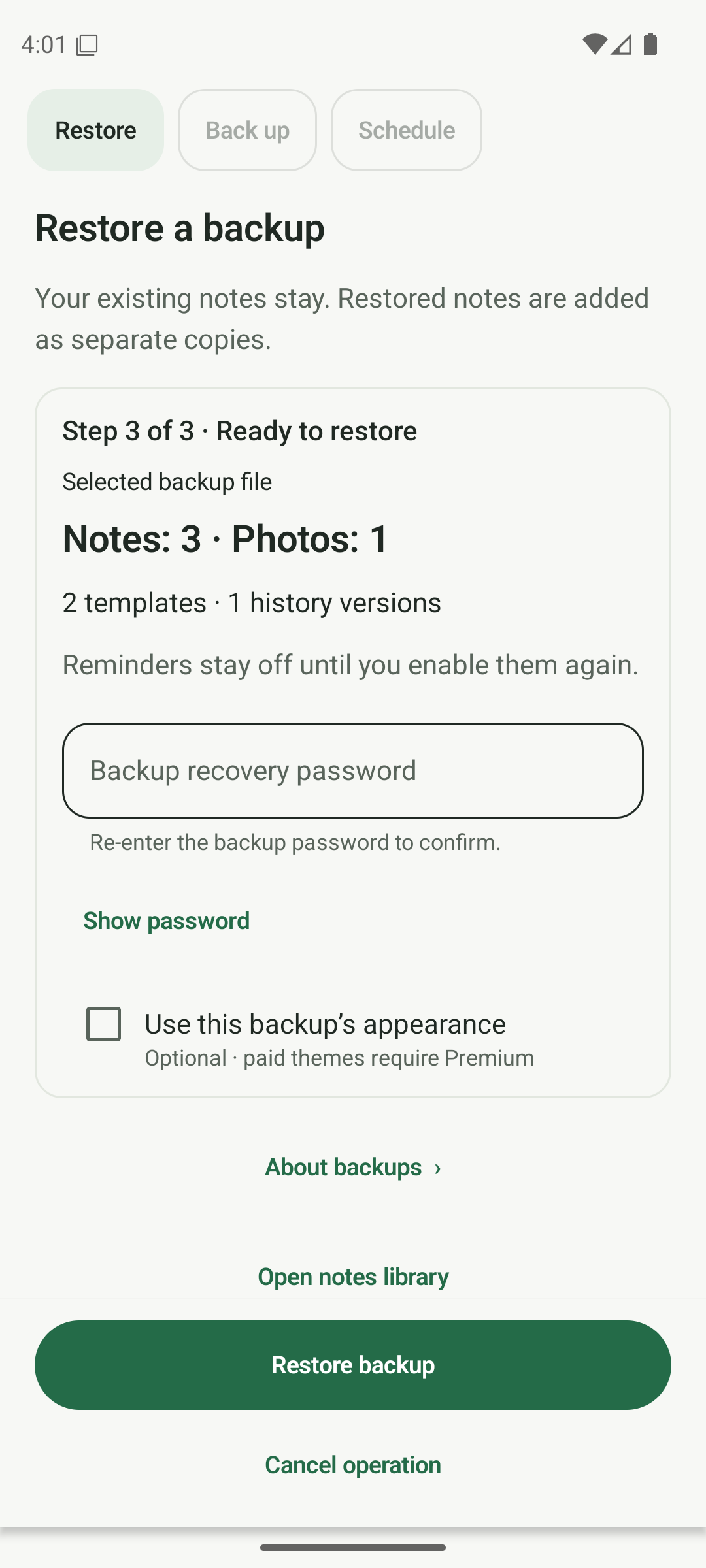
Review the backup counts and optional appearance settings. Confirm and restore your copies
Re-enter the backup’s recovery password to confirm. Leave Use this backup’s appearance unchecked unless you want those settings. Tap Restore backup. If protected content is included, complete the protection setup or unlock requested on this phone, then let the restore finish.
- Enter the backup password again, then tap Restore backup.
- For protected content, use this phone’s protection setup or authentication when prompted; its vault is independent of the source phone.
- Keep the app open and wait for the completion message.
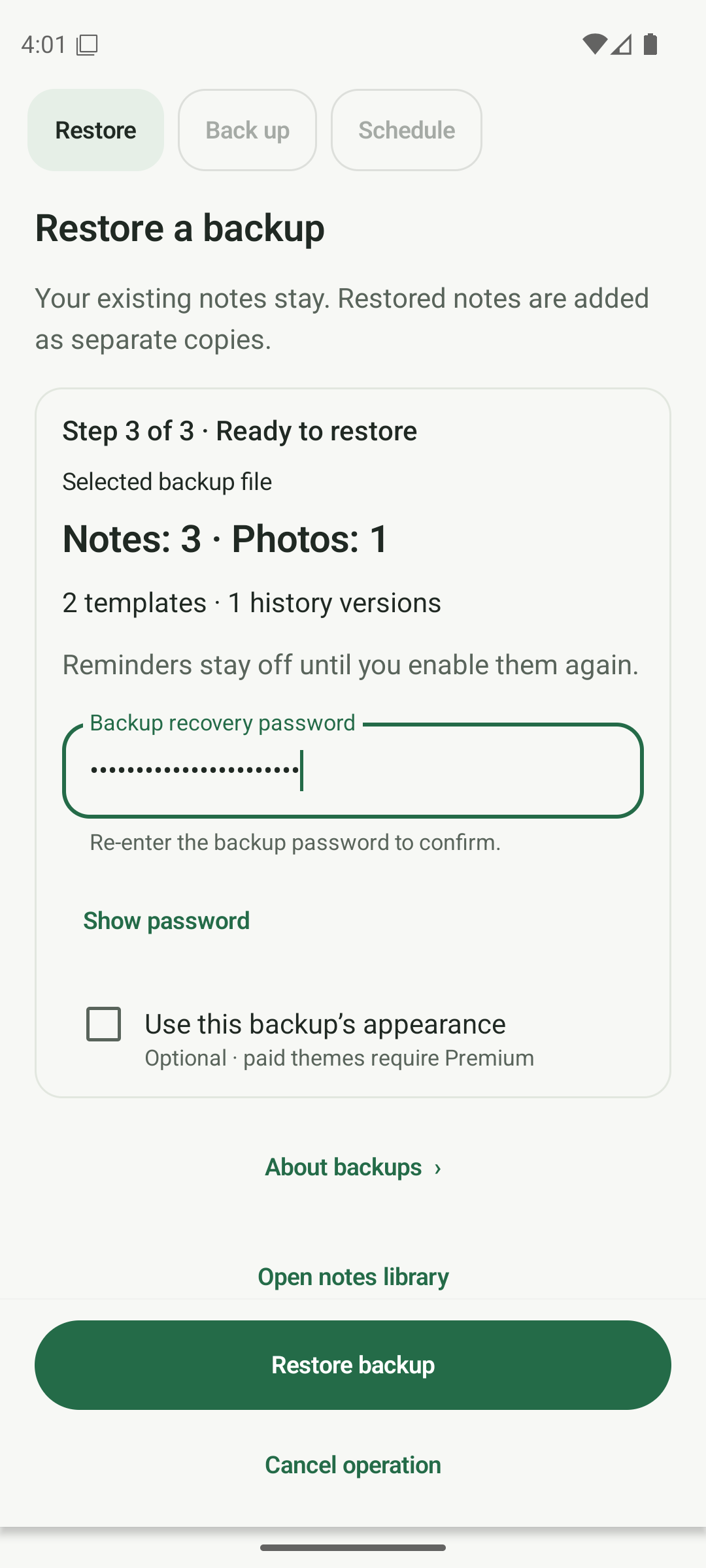
Re-enter the backup password before confirming the restore. Check your restored notebook
Wait for the Restore complete message, then tap Open notes library. Check the restored notes and photos. Restored reminders stay off until you enable them again. Keep the original backup and its password until you have checked your copies.
- Tap Open notes library and open a few restored notes.
- Check photos and look in Archive or Trash if a note was stored there.
- Re-enable the reminders you want and keep your recovery copy safe.
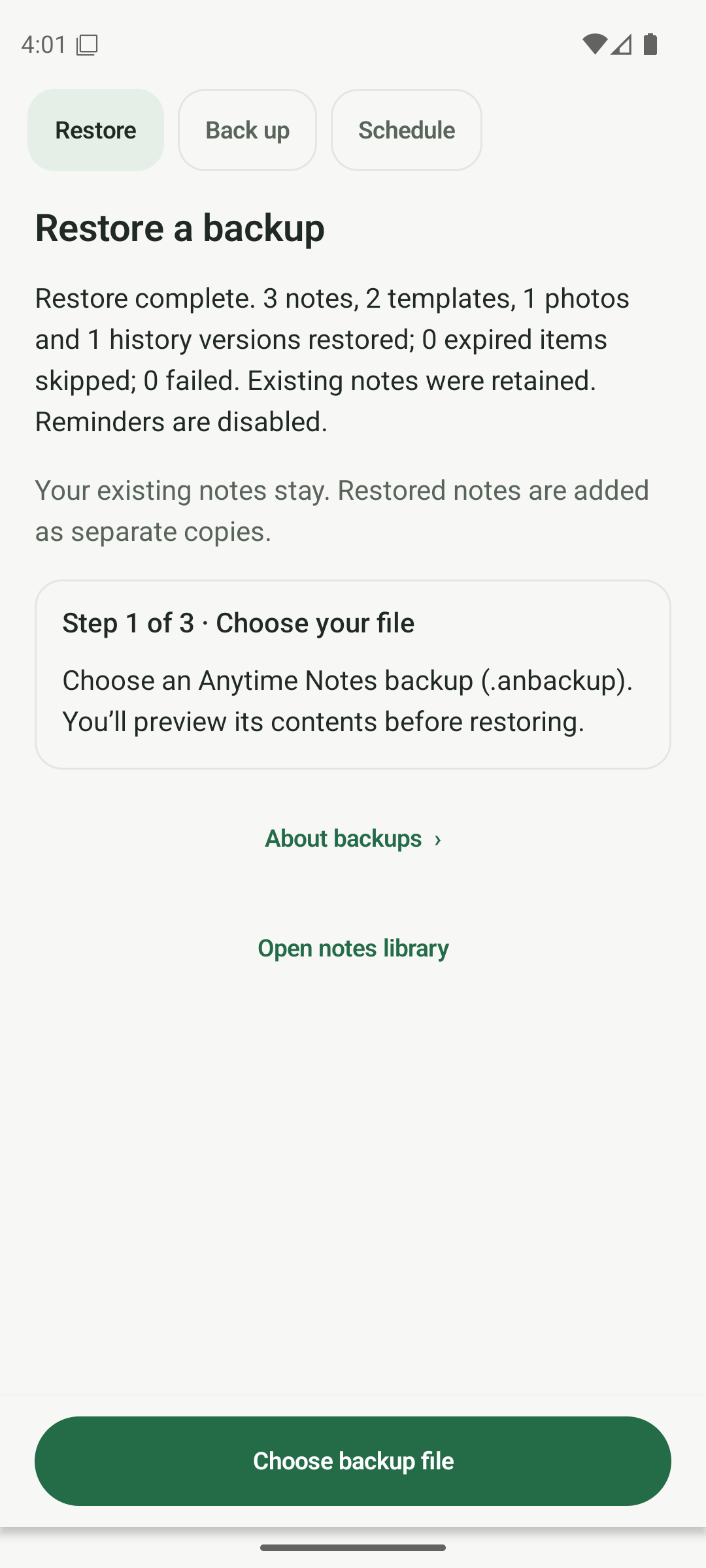
Wait for Restore complete before opening your notebook.
Know someone who could use this?
Share this note
Get Anytime Notes
A little space for your notes, lists and everyday plans.
View on Google PlayAndroid availability depends on your region and testing access. If Google Play does not offer installation yet, please check back later.