
How-to · Android
How to Send an Encrypted Note
Share a password-encrypted note from Anytime Notes, send the password separately, and help your recipient open their copy.
Send a private copy of a note as a password-encrypted .ans file. This is a manual file transfer, so you choose both the recipient and the app used to deliver it.
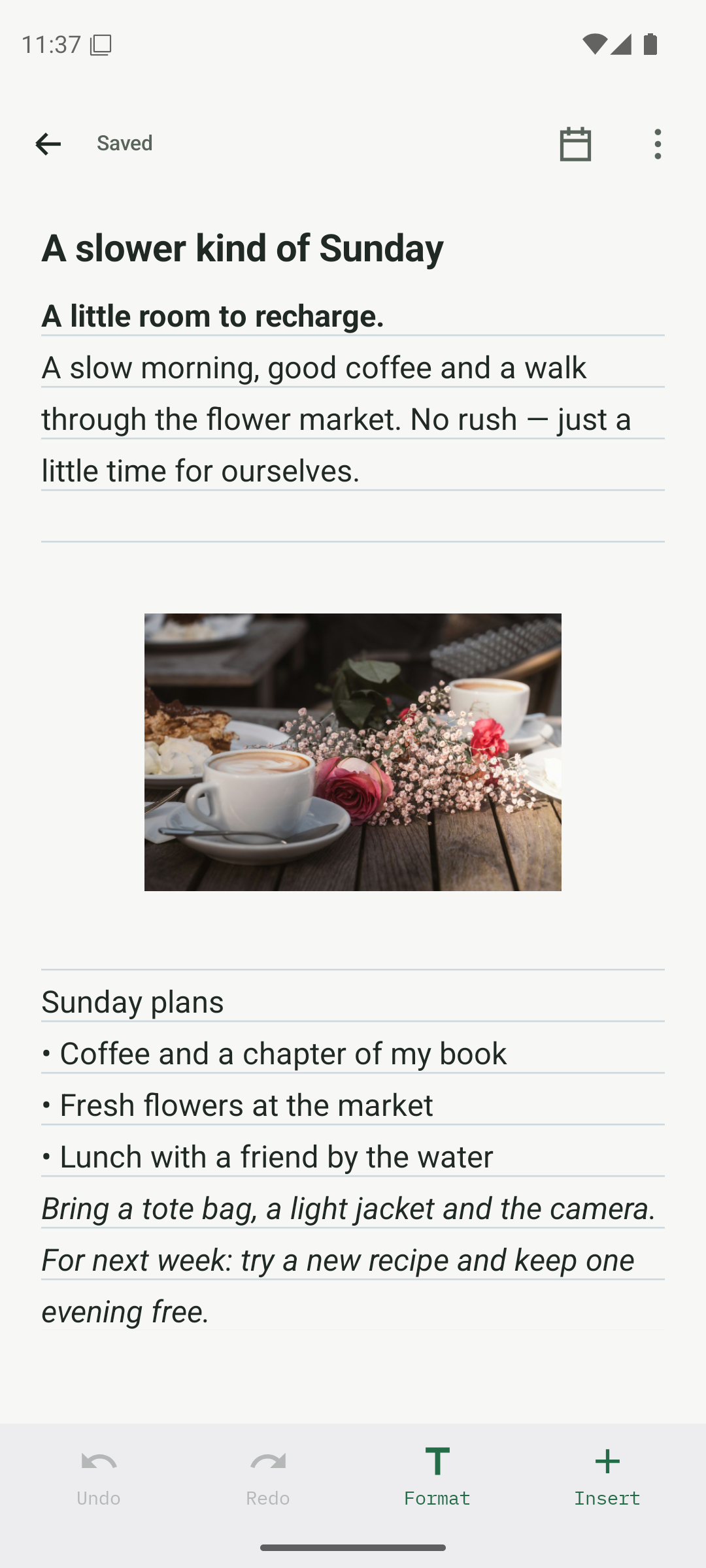
Open the note you want to send
Open a saved note or checklist. Open its options menu and choose Share or export, then Share password-encrypted file. Encrypted file sharing is included in Free; no account or device pairing is needed.
- Start with one saved note or checklist.
- Open the note’s options menu and tap Share or export.
- On the export screen, tap Share password-encrypted file.
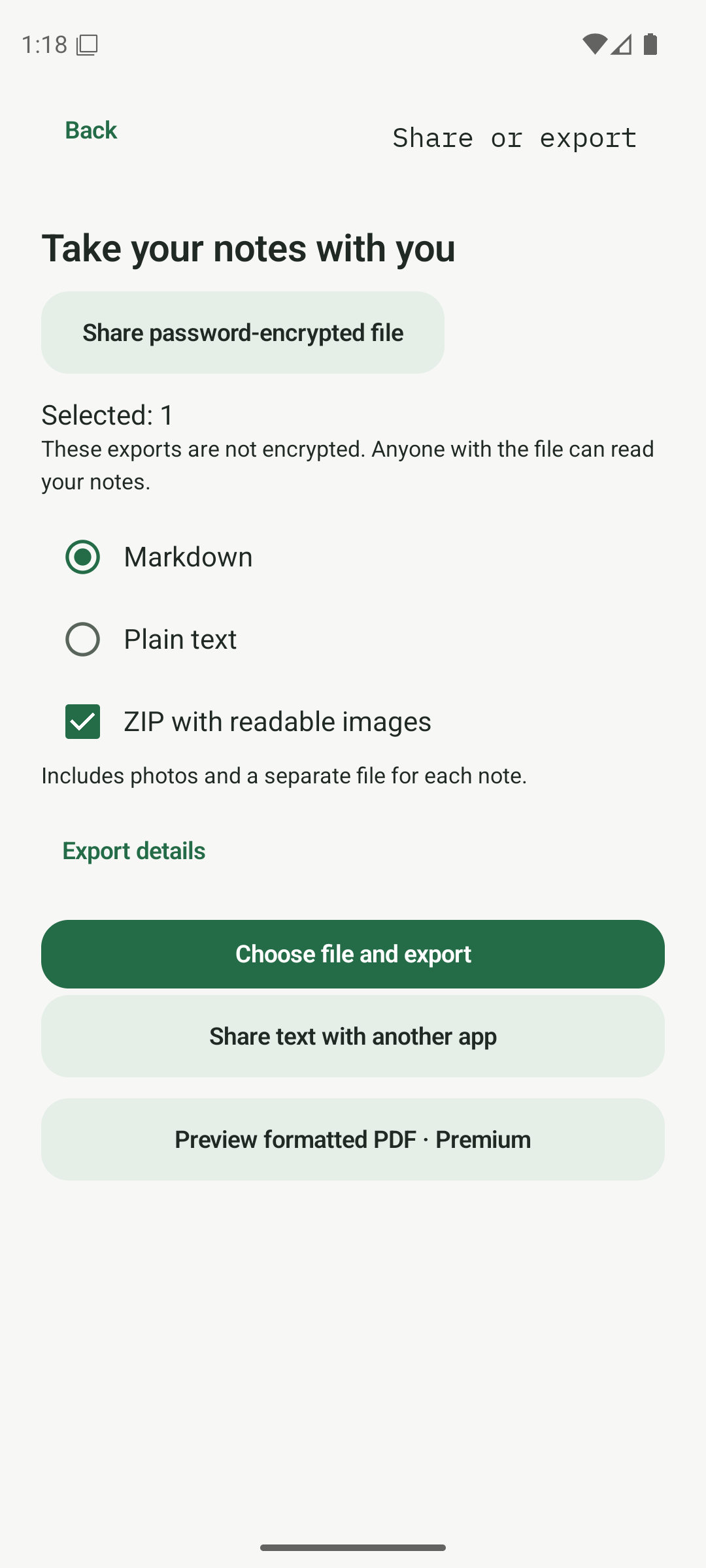
Choose the password-encrypted option on the export screen. Choose a sharing password
Enter a strong, unique password of 15–128 characters and confirm it. Tap Encrypt. If the note is protected, complete the authentication requested by the app. Keep this sharing password: there is no password reset.
- Type a unique password in the first field.
- Type the same password again in Confirm password.
- Tap Encrypt and wait for the file-ready message.
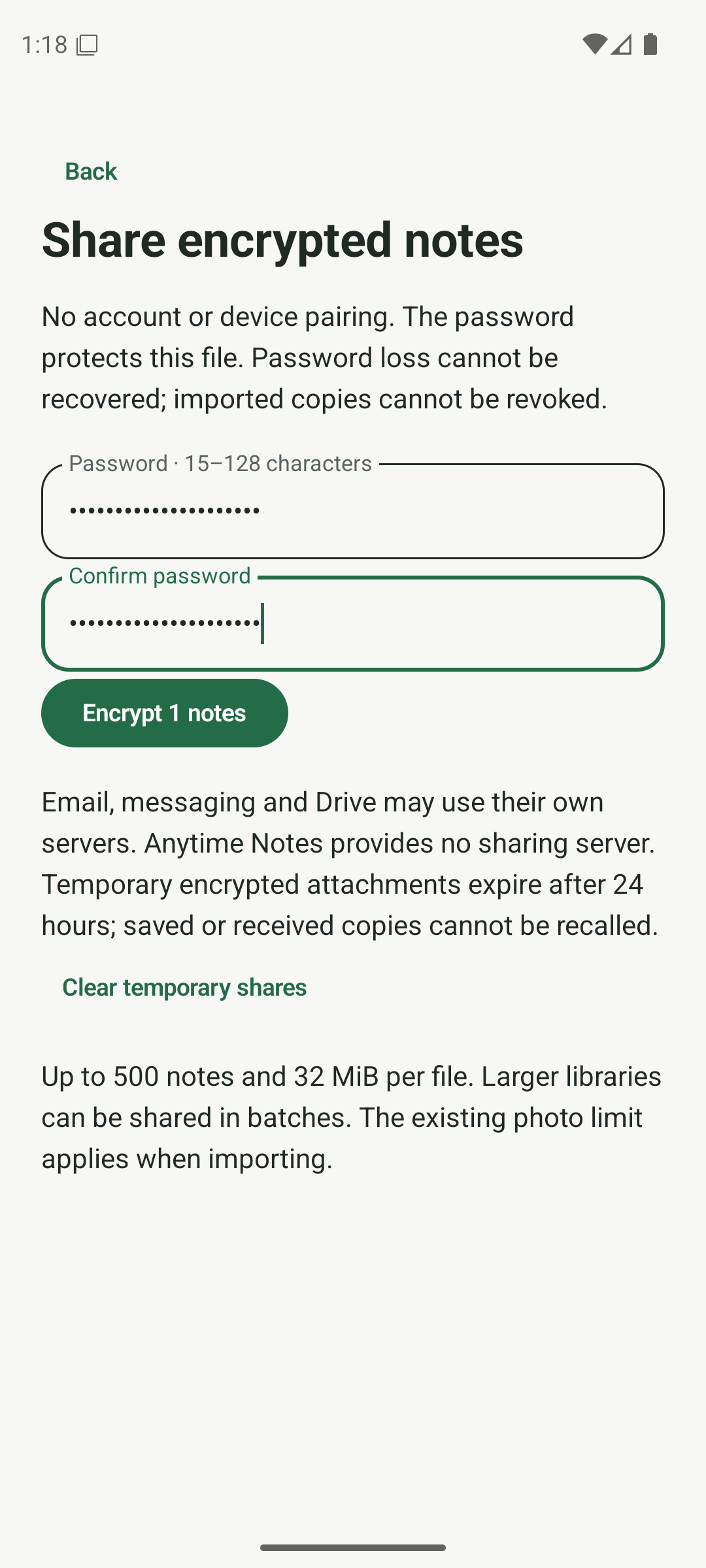
Enter and confirm a password, then tap Encrypt. Send the encrypted file
When the file is ready, choose Share with another app and select your email or messaging app. You can also choose Save encrypted file and attach the saved .ans file yourself. Complete sending in the app you chose; opening the share menu does not send it.
- Tap Share with another app to open Android’s sharing options.
- Choose a recipient in your email or messaging app, attach the file, and finish sending there.
- Prefer to save it first? Tap Save encrypted file, choose a destination, then attach that .ans file yourself.
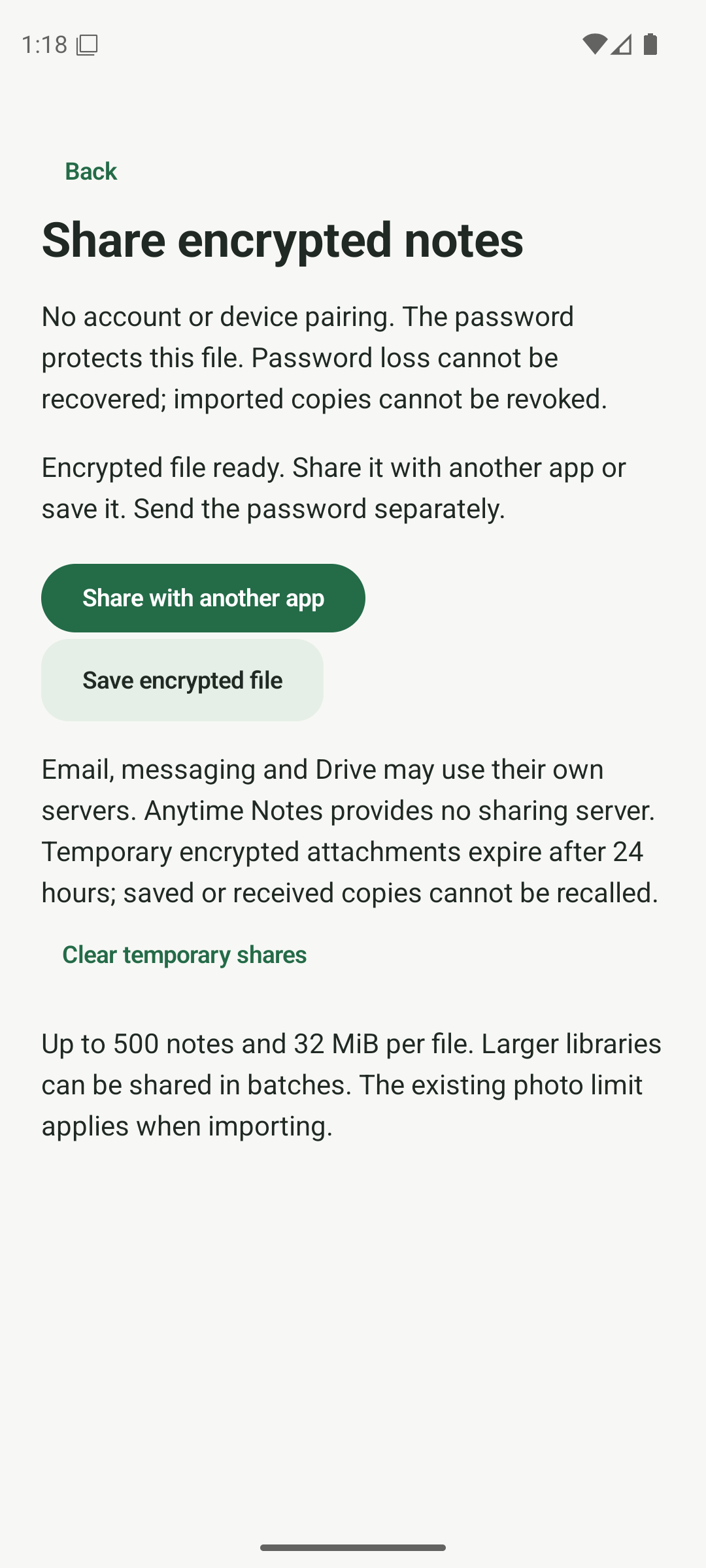
Your encrypted file is ready to share or save. Send the password separately
Give the recipient the password through a different channel, such as a phone call. Avoid putting the password in the same message as the encrypted attachment.
- Call the recipient or use a different communication channel.
- Tell them the password without including it with the attachment.
- Keep the password until they confirm they can open the file.
One channel for the file. Another for the password.
Open and import the received note
The recipient needs Anytime Notes on Android. Open the .ans attachment with Anytime Notes, or use More → Import notes → Import password-encrypted file and choose the file. Enter the password, choose Decrypt and preview, review the contents, then choose Import reviewed copies. Imported copies are unprotected until the recipient protects them.
- In Anytime Notes, choose More → Import notes → Import password-encrypted file.
- Choose the received .ans file, enter its password, then tap Decrypt and preview.
- Check the note’s title and contents, then tap Import reviewed copies. Protect the new copy if it should stay private.
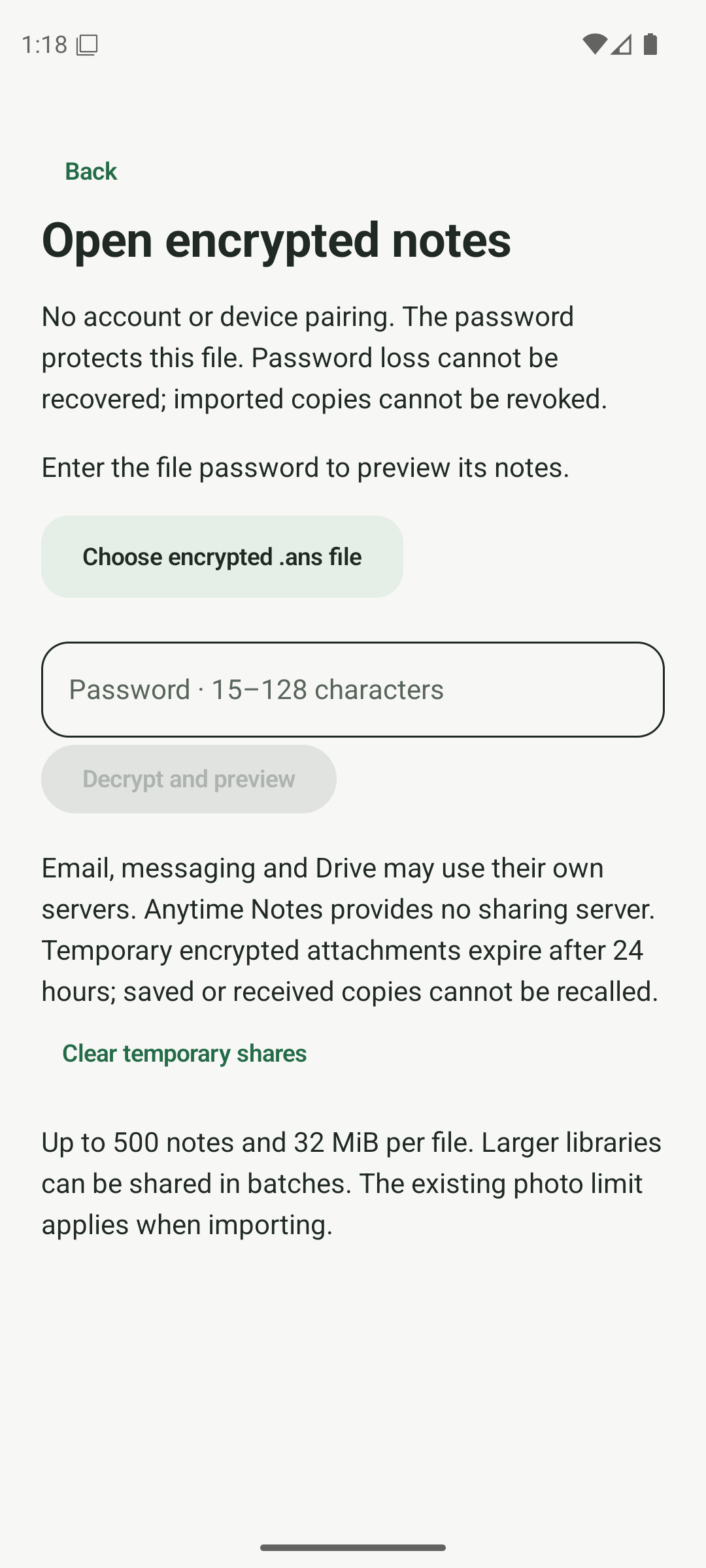
Choose the received file and enter its password. 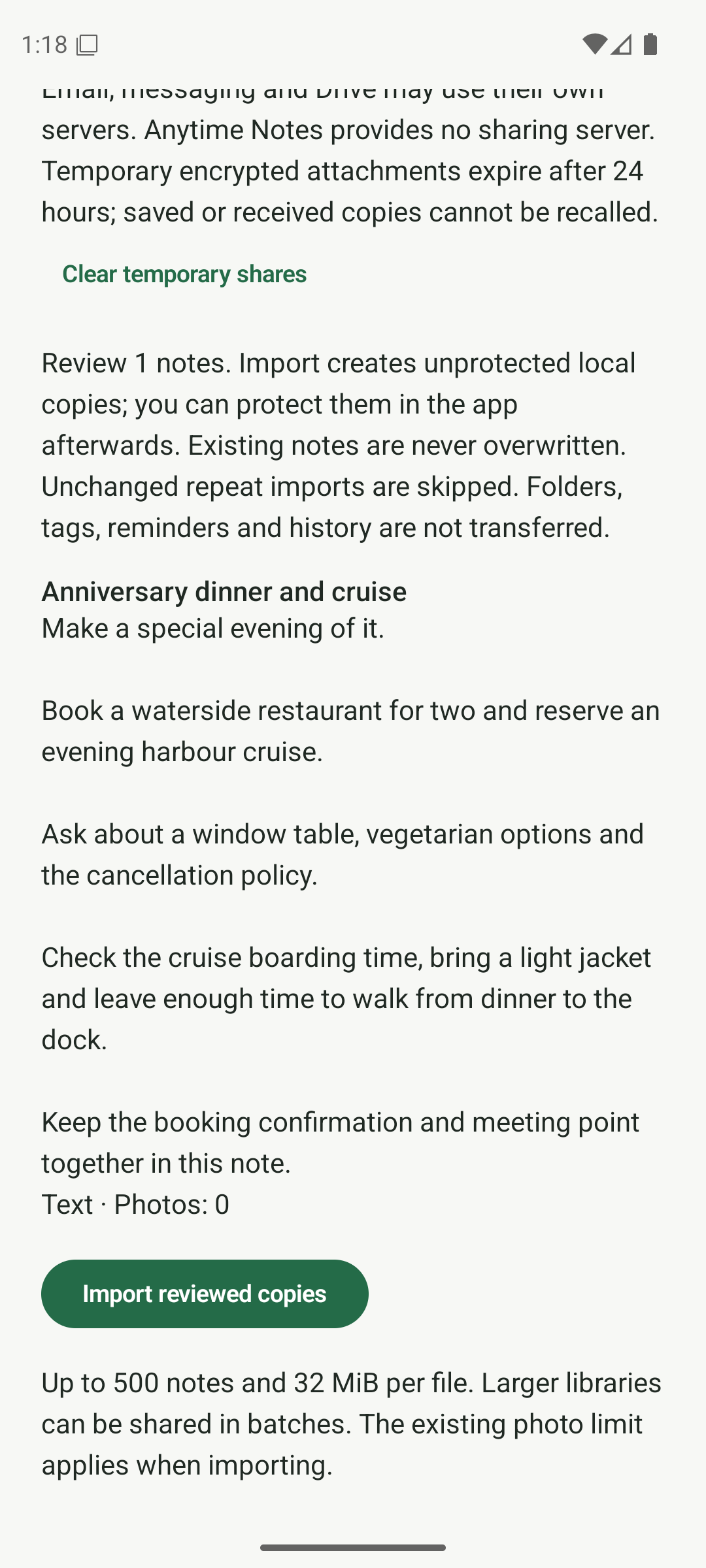
Review the note before importing a new local copy.
Know someone who could use this?
Share this note
Get Anytime Notes
A little space for your notes, lists and everyday plans.
View on Google PlayAndroid availability depends on your region and testing access. If Google Play does not offer installation yet, please check back later.