
How-to · Android
How to Sync Your Notes Between Devices
Pair two Android phones, choose the notes you want to share, and sync directly over the same Wi-Fi.
Keep selected notes available on another phone without creating an account. You choose what to send and when to connect.
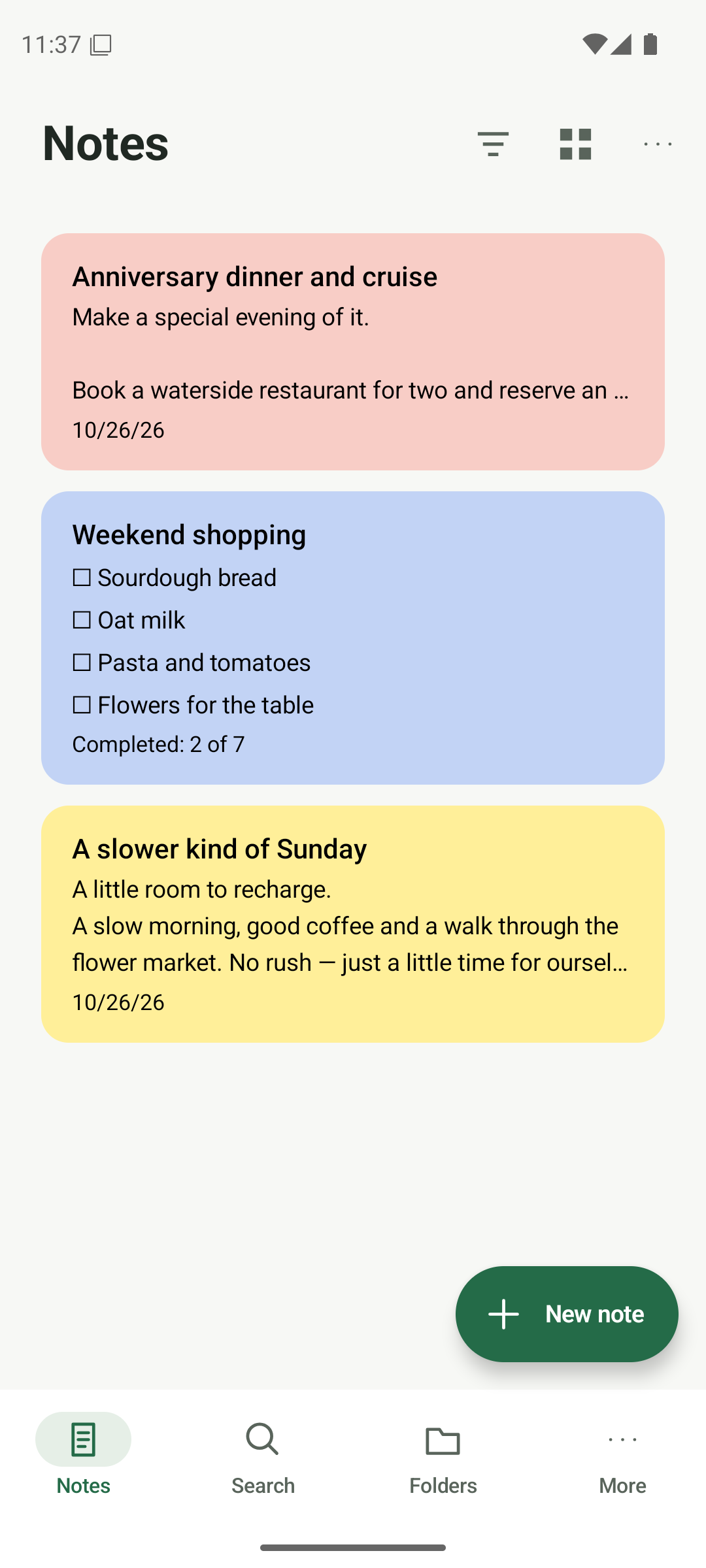
Open Device sync on both phones
Finish saving your notes. Connect both Android phones to the same Wi-Fi, open Anytime Notes, then choose More → Device sync setup on each phone. Keep both apps open during setup and syncing.
- Use the same Wi-Fi with a direct connection between the phones.
- Open More → Device sync setup on both devices.
- Save any open edits before you begin.
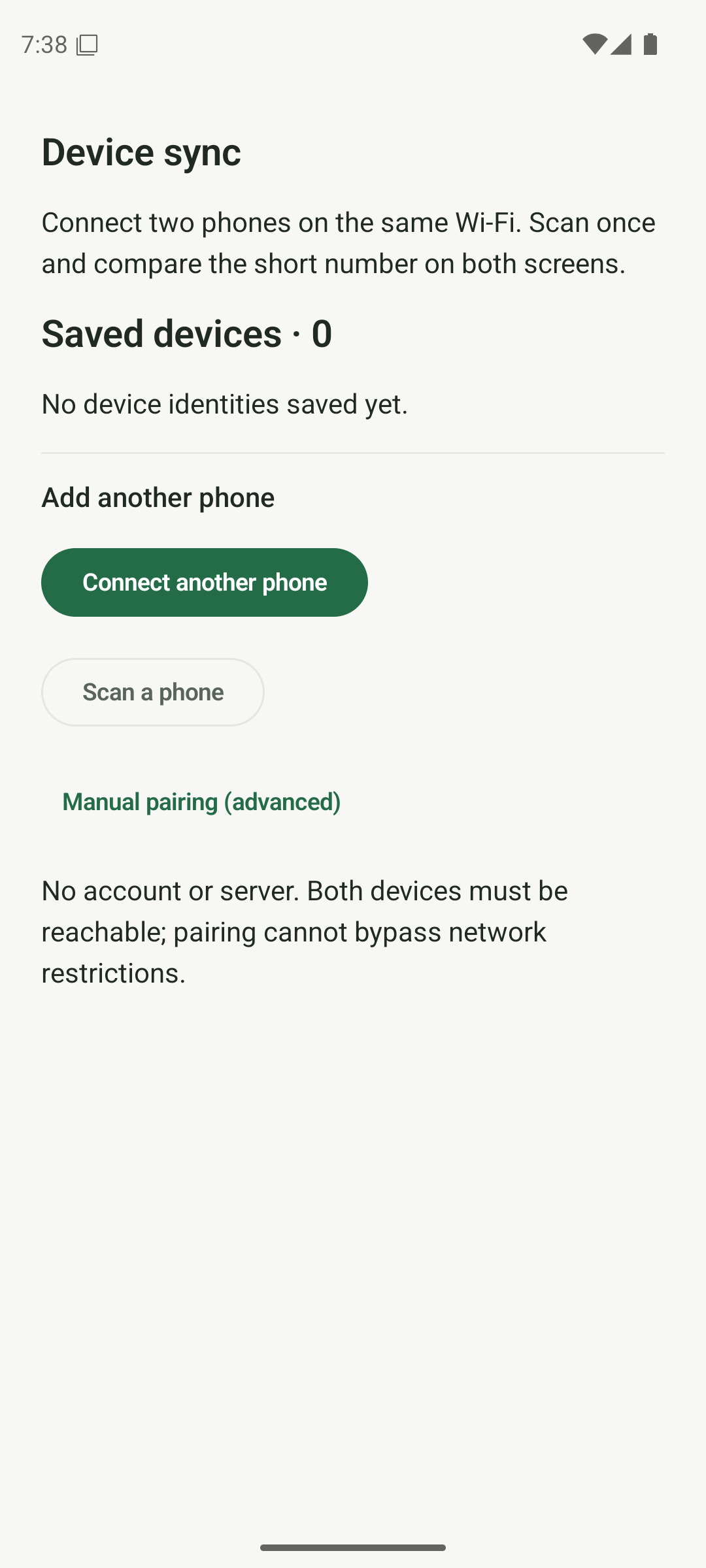
Open Device sync on both phones while connected to the same Wi-Fi. Pair your phones and compare the numbers
On the first phone, tap Connect another phone. On the second, tap Scan a phone and allow camera access when requested. Scan the first phone’s current QR code. Compare every digit of the confirmation number directly on both screens, then tap Codes match on both only if they match.
- Show a QR code with Connect another phone; scan it with Scan a phone.
- Compare the entire number in person on both screens.
- If the numbers differ or the code expires, cancel and start again.
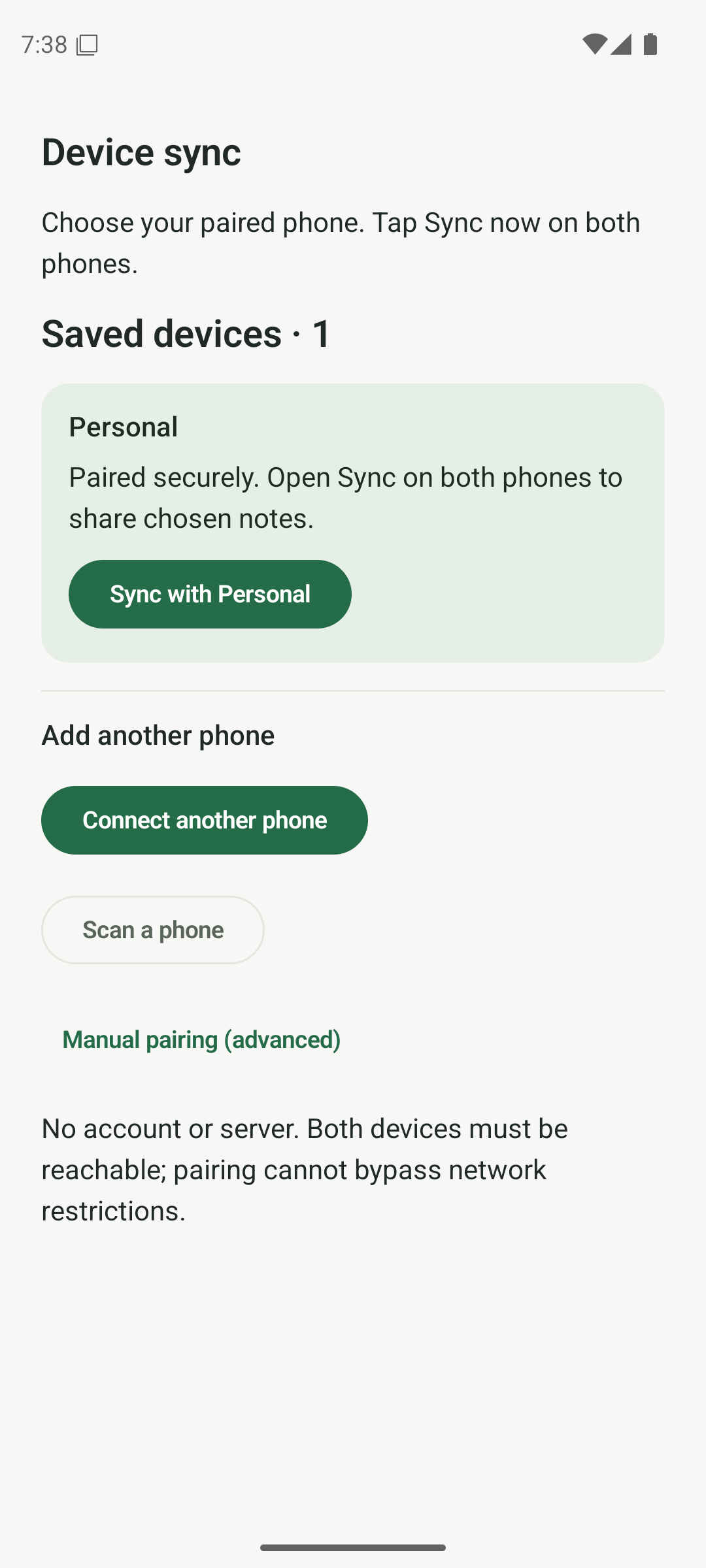
After comparing and confirming the numbers, your paired phone appears in Saved devices. Choose the notes you want to sync
Open Sync with your paired phone. Tap Choose notes, select the saved notes or checklists you want to send, then tap the Add button showing your selected count. Do this on either phone that has notes to send. A phone can receive without selecting its own notes.
- Tap Choose notes inside the paired phone’s sync screen.
- Select individual notes, or use Select all eligible notes after reviewing the list.
- Tap the Add button showing your selected count. Archived notes, Trash and unsaved drafts are not eligible.
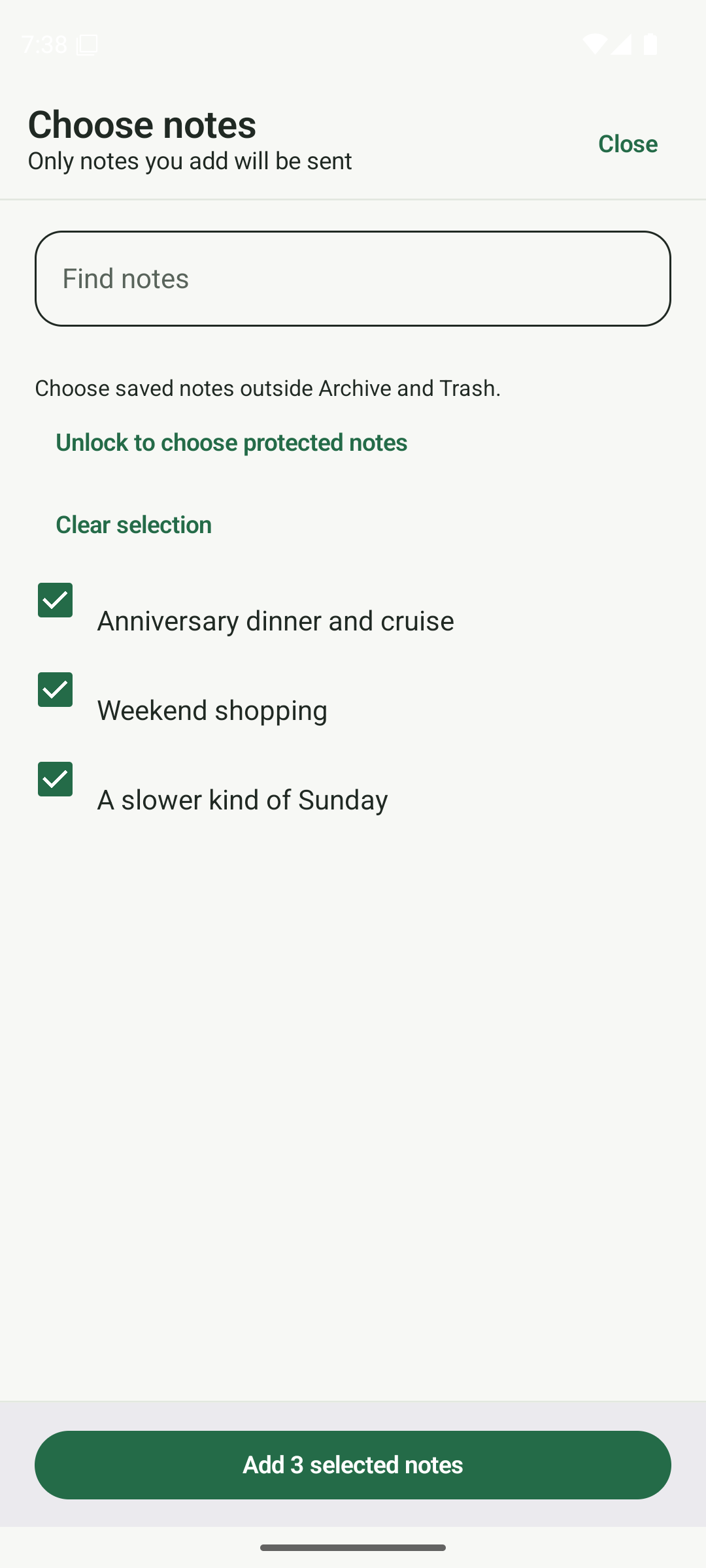
Select the saved notes you want to add to sync. Tap Sync now on both phones
Check Notes to sync, then tap Sync now on both phones. Keep both apps open and wait. For protected notes, use Unlock protection for sync and complete the protection setup or authentication requested on each phone.
- Start Sync now on each phone; starting on only one leaves it waiting.
- Unlock protection on both phones if private notes are involved.
- Leave both apps in the foreground until the exchange finishes.
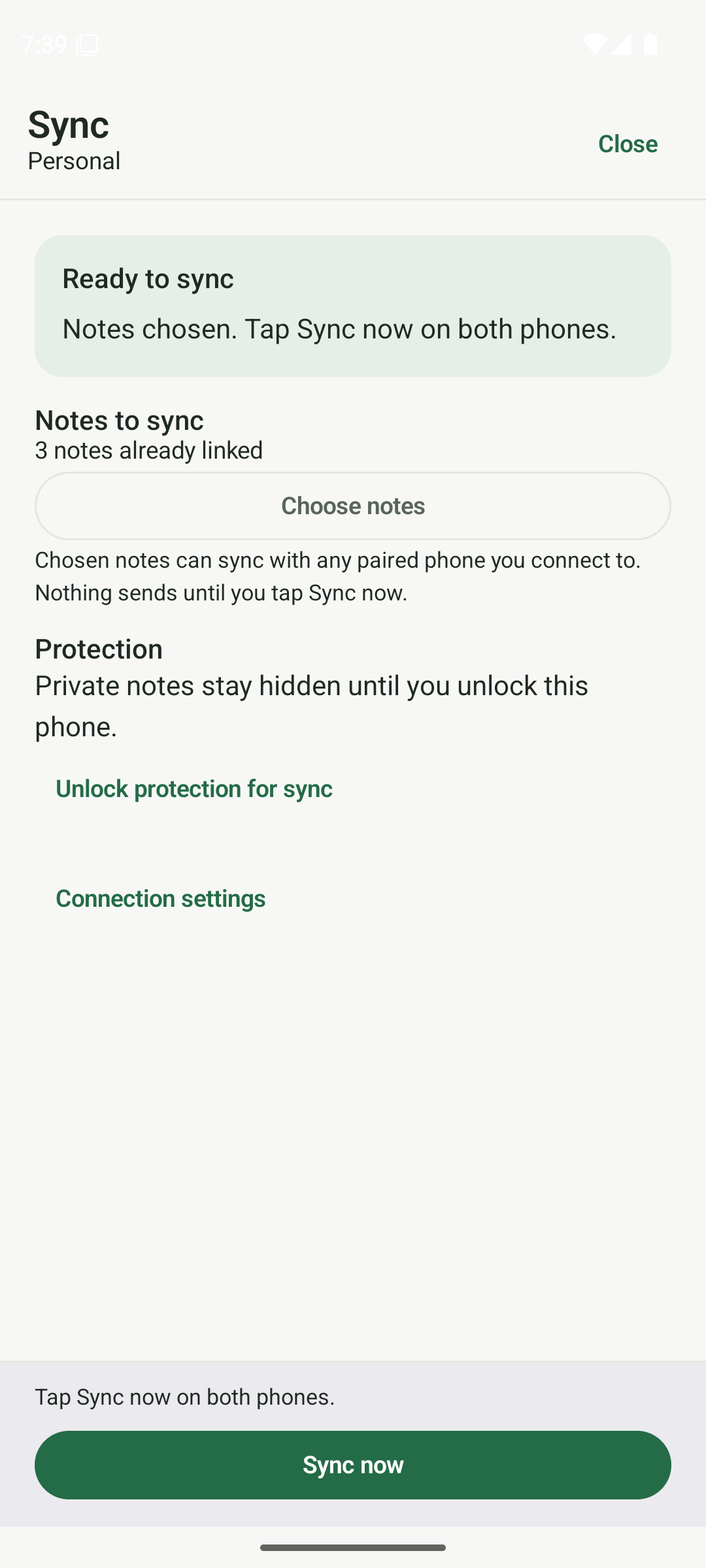
Check your chosen notes, then tap Sync now on both phones. Check the result on both devices
Wait for Up to date and the message that both phones are up to date. Close sync and open a few notes on the other phone to check their contents and photos. To exchange later edits, open sync again and tap Sync now on both phones.
- Look for Up to date before closing the sync screen.
- Review any deletion requests: Keep my copy or Move to trash.
- Repeat sync when you want to exchange later changes; keep a separate backup too.
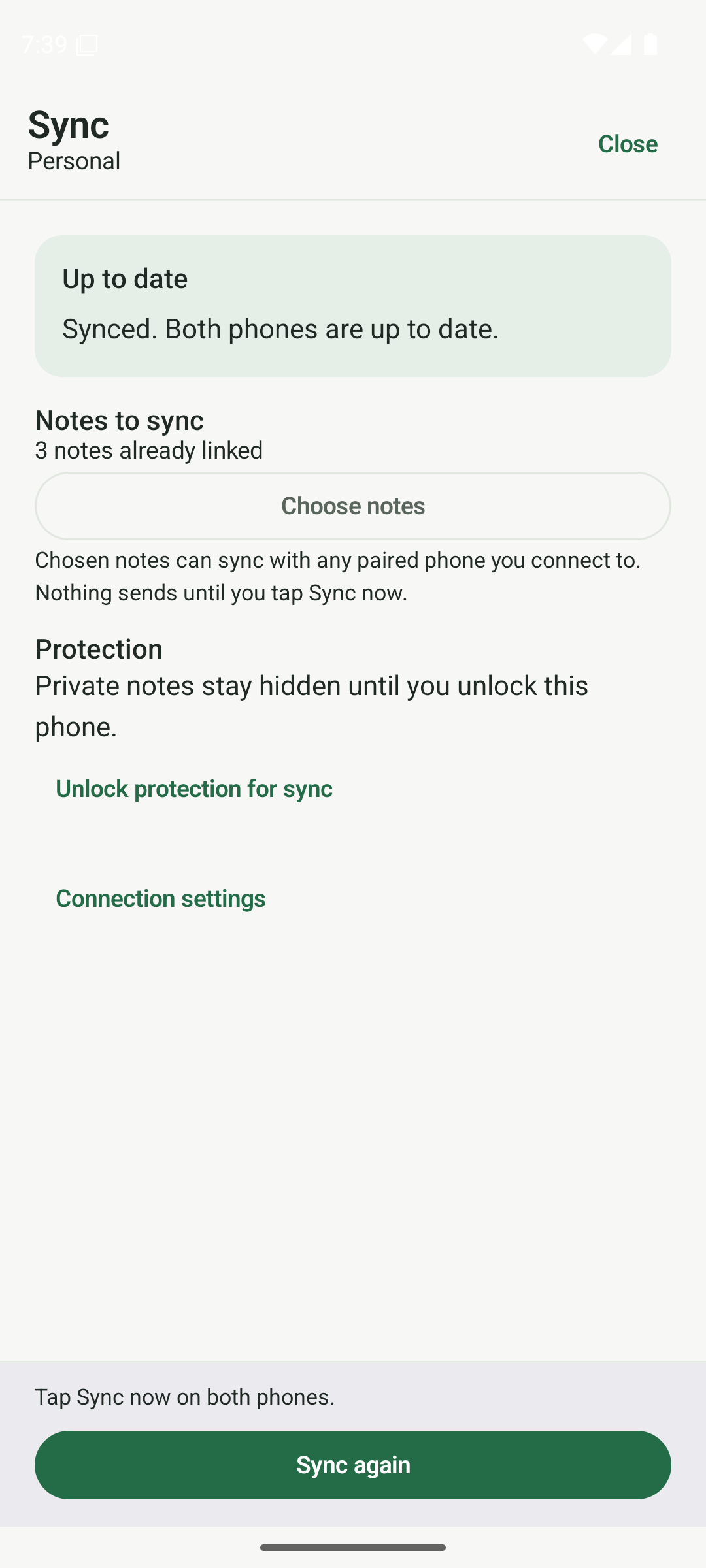
Wait for Up to date, then check your notes on both devices.
Know someone who could use this?
Share this note
Get Anytime Notes
A little space for your notes, lists and everyday plans.
View on Google PlayAndroid availability depends on your region and testing access. If Google Play does not offer installation yet, please check back later.