
How-to · Android
How to Protect Your Notes
Protect a saved note or checklist, keep its contents hidden while locked, and retain a recovery password for your private notebook.
Keep personal notes private on your phone. Choose which notes to protect, then use Android authentication when you open them.
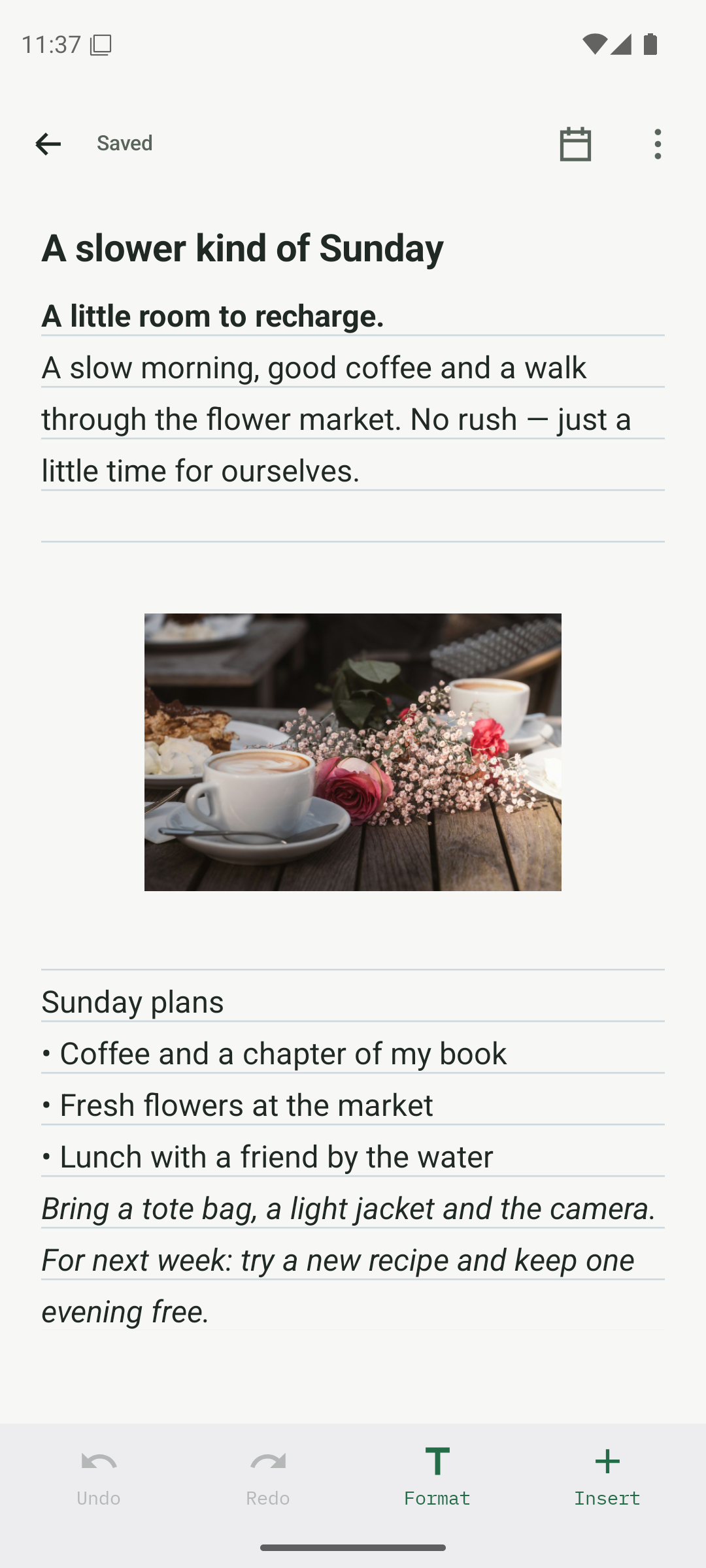
Open a saved note and choose protection
Open the note or checklist you want to protect. Finish saving your changes, open Options, then tap Protect this note. Protection is included in Free.
- Choose one saved note or checklist in your library.
- Finish saving before opening Options.
- Tap Protect this note.
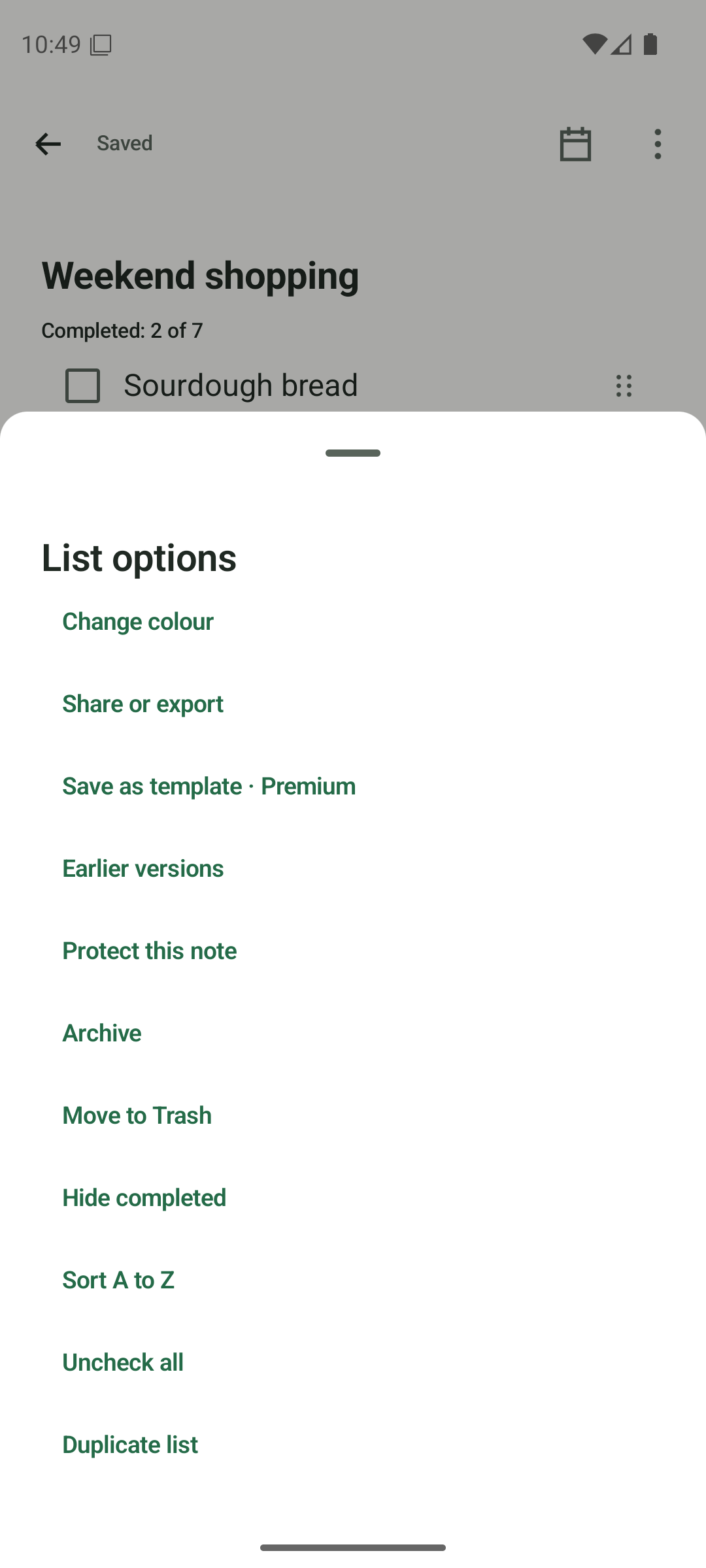
Open Options and choose Protect this note. Read the setup requirements
For your first protected note, the app shows Set up note protection. Your phone needs an Android screen lock: a PIN, pattern or password. Read the protection and recovery information before continuing. If protection is already set up, the app asks you to authenticate instead.
- Set an Android PIN, pattern or password first if the app requests it.
- Read Set up note protection before entering a password.
- An existing protection setup is shared by your protected notes on this installation.
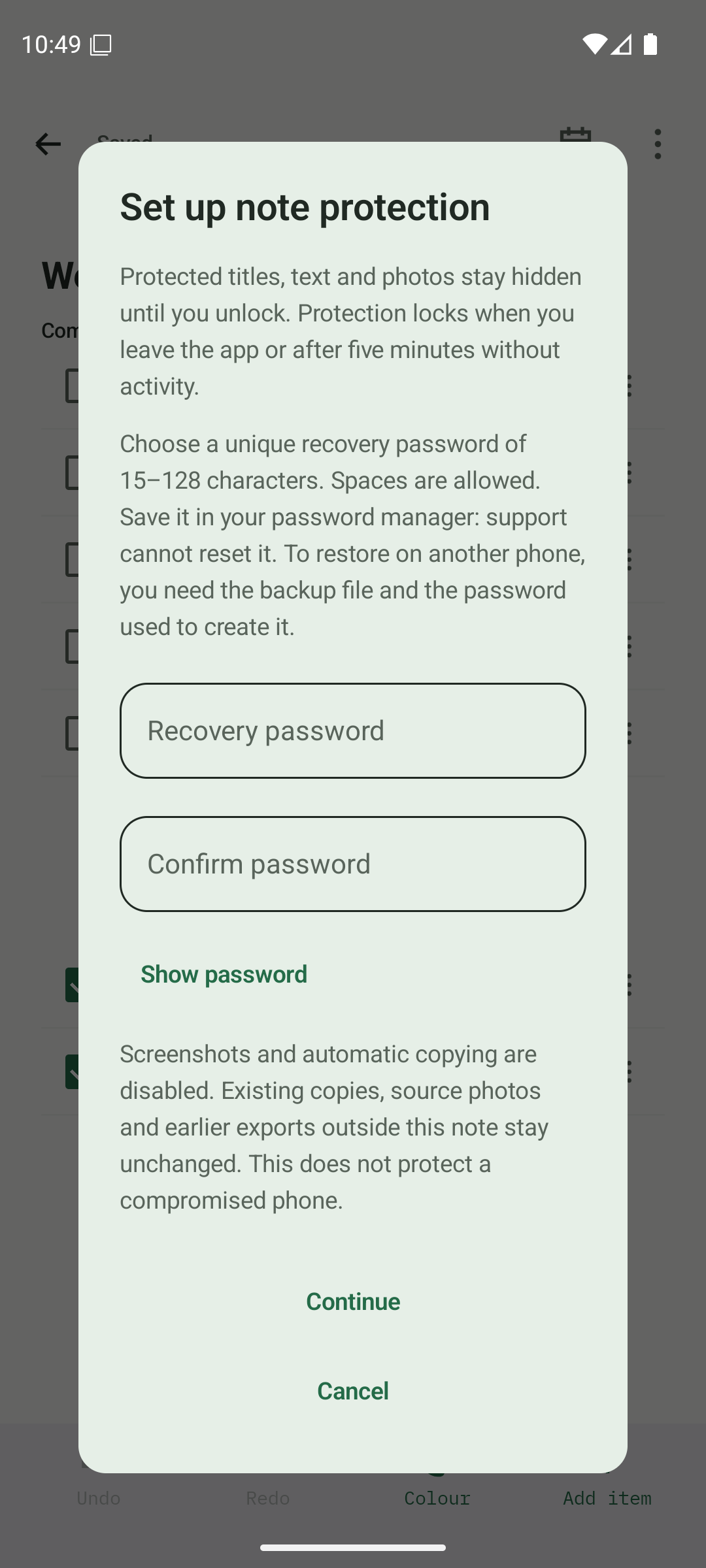
Read the first-time protection setup and recovery requirements. Set and keep your recovery password
Enter a strong, unique recovery password of 15–128 characters and enter it again in Confirm password. Store it safely outside the app. Tap Continue, complete the Android authentication requested on this phone, and wait for the app to finish securing the note.
- Choose a unique recovery password of 15–128 characters.
- Enter the same password in both fields and keep a safe copy outside the app.
- Tap Continue, authenticate with Android, and wait for completion. Do not assume protection finished if you cancelled or saw an error.
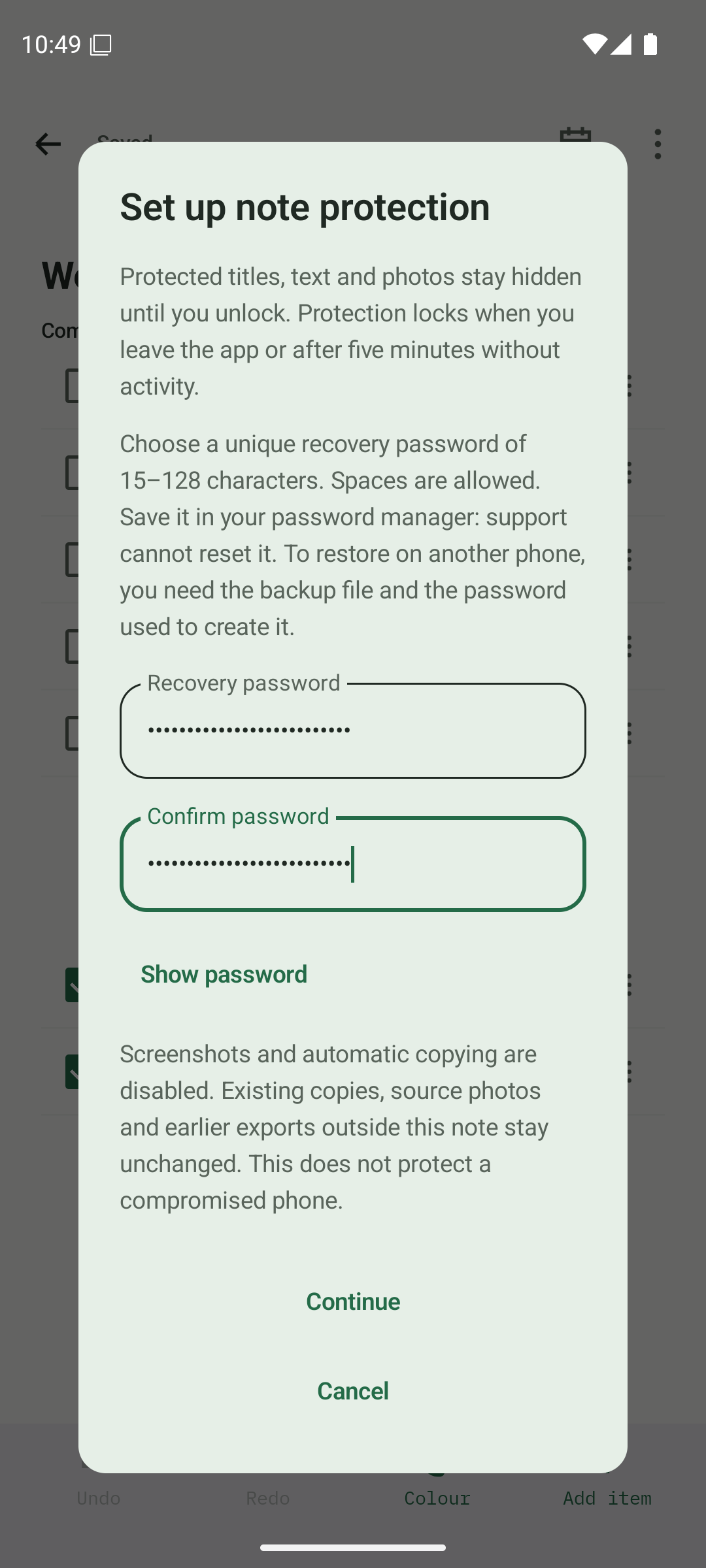
Enter and confirm your recovery password before continuing to Android authentication. Lock the note and check what is hidden
After protection finishes, the note’s Options menu includes Lock now. Use it when you are done reading. Protected titles, text and photos stay hidden while locked. The app also locks private content when it goes into the background or the protection session expires.
- Open the protected note’s Options menu and tap Lock now.
- Return to the library and check that the private title and preview are hidden.
- Unlock only when you want to read or work with private content.
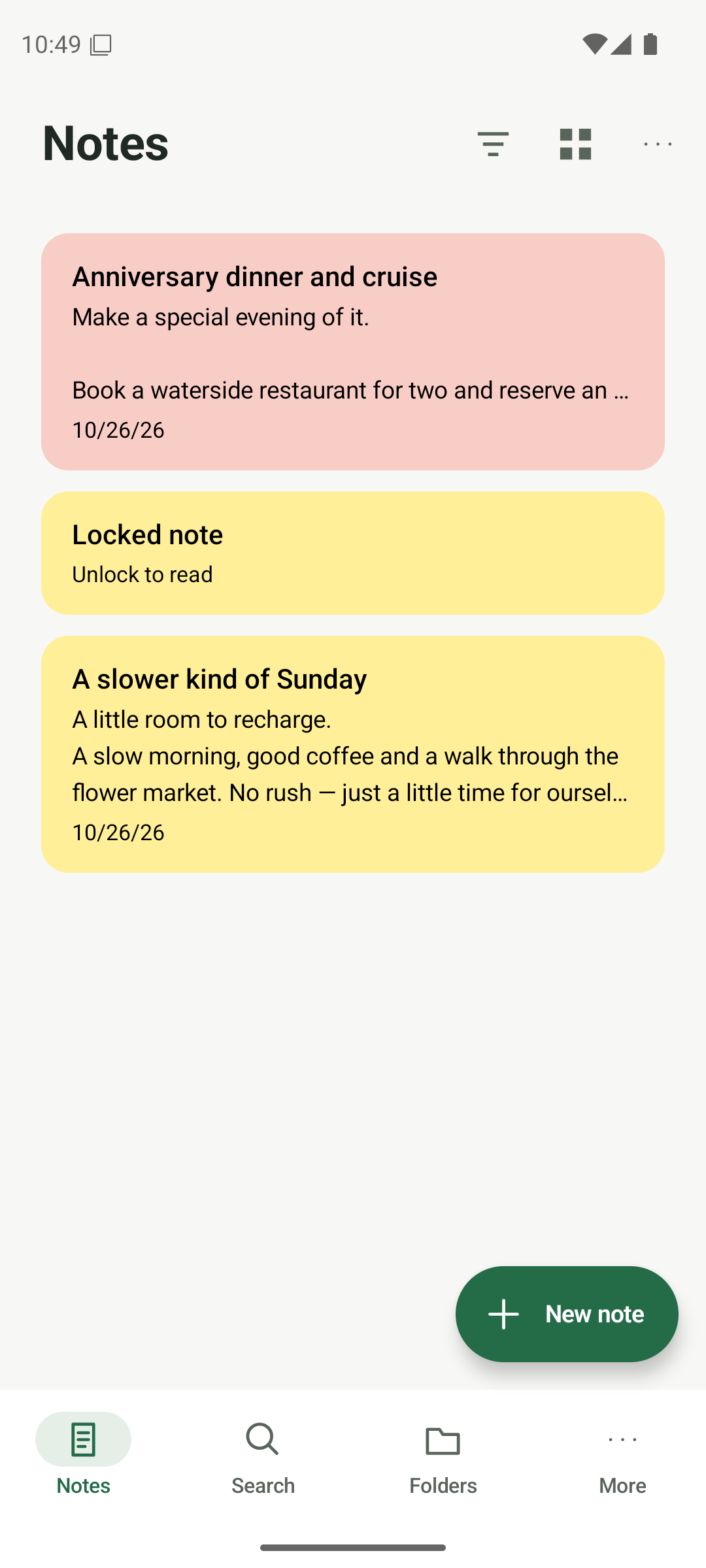
A locked protected note hides its title and contents in the library. Open your protected note again
Tap the protected note in your library. In Protected note, tap Continue and complete Android authentication. If the device key is unavailable, choose Use recovery password and follow the recovery and Android authentication prompts. Keep your recovery password and a separate encrypted backup safe.
- Tap the protected note, then Continue and authenticate.
- Choose Use recovery password if the normal unlock cannot work; recovery also requires Android authentication.
- If you see an error, keep the app and its data. Do not uninstall or clear storage.
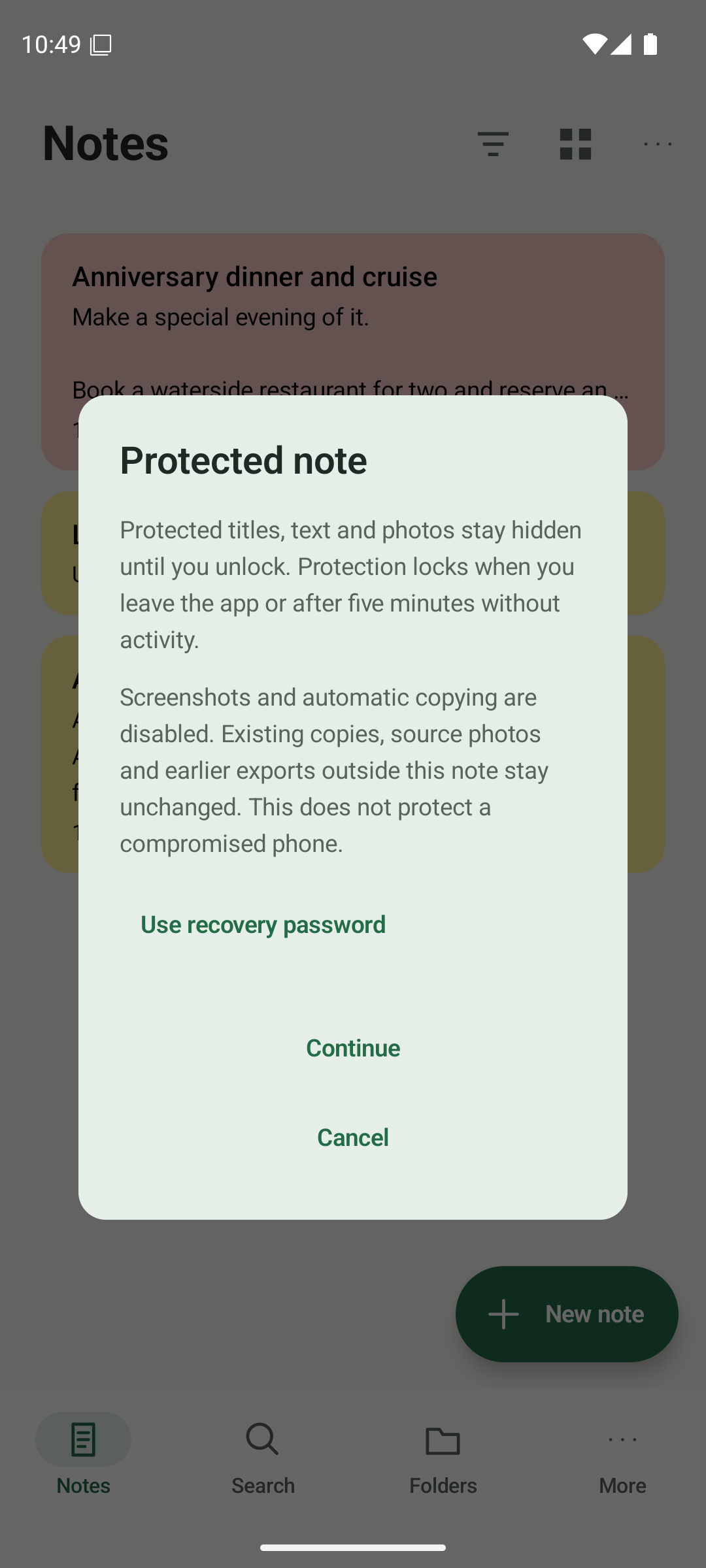
Open the protected note and continue to Android authentication, or choose recovery.
Know someone who could use this?
Share this note
Get Anytime Notes
A little space for your notes, lists and everyday plans.
View on Google PlayAndroid availability depends on your region and testing access. If Google Play does not offer installation yet, please check back later.